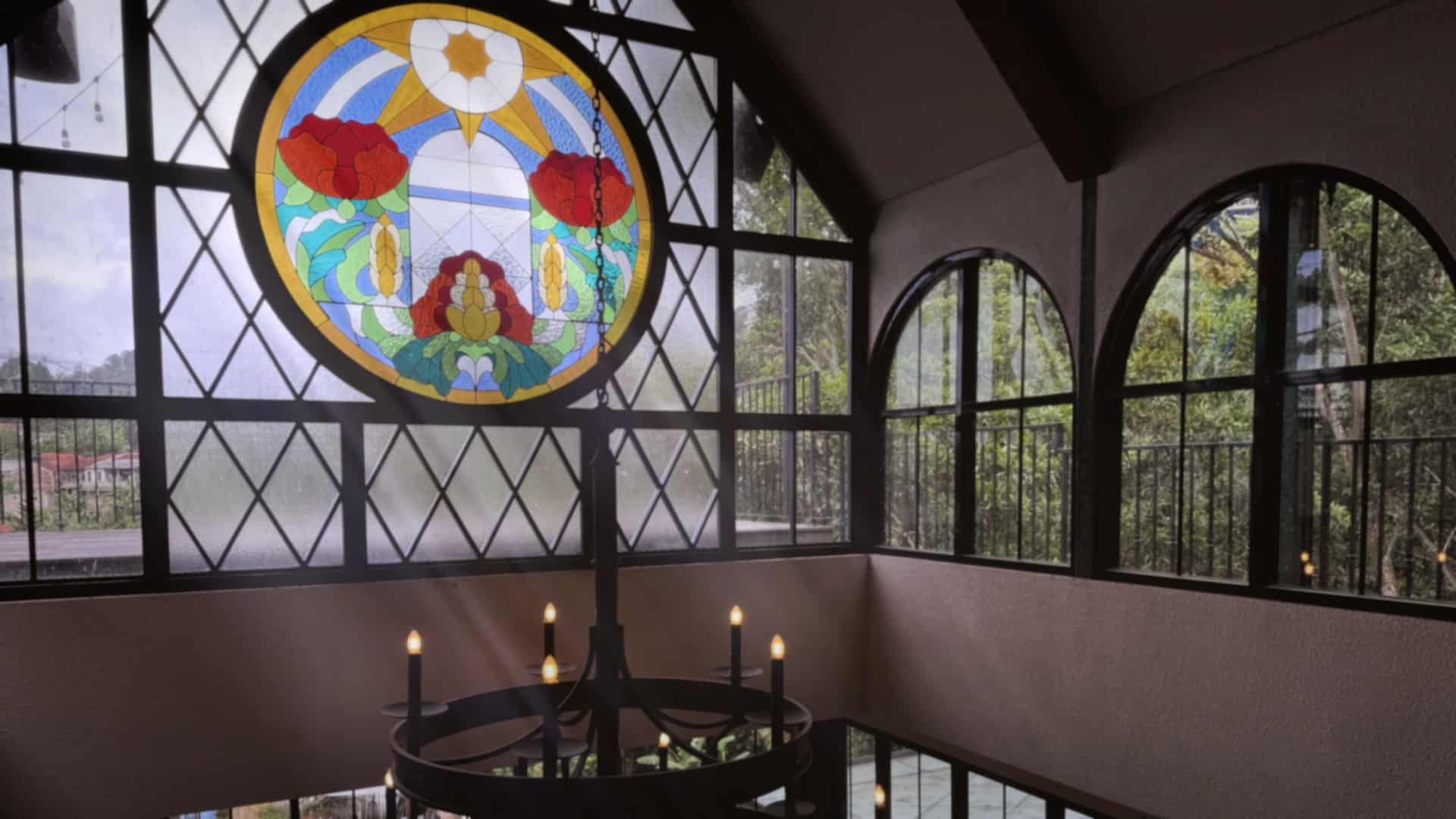
From the time the resolution of analogue film and lenses became merciless enough to make the leading lady complain about the look of her skin, camera-folks have been using solutions to diffuse images. From primitive beginnings, like vaseline or nylon stockings applied over the lens, a full range of optical filters was developed. Today, many of those are also simulated by software. We have already tested the ones from Video Village called Scatter here.
While they come very close to the real thing, these are neither cheap nor very flexible. Apart from highlight recovery adjustments and the treatment of the outer edges of the picture, there is not much you can change. Of course, that’s intentional when you just want to simulate optical filters as closely as possible, and Scatter does. But these days, there are other third-party options and new ones built into DaVinci Resolve 20.1 (DR for short), so let’s have a look at those.
FilmConvert at it again
We have already reviewed most of the tools by FilmConvert from New Zealand, but not a recent one aiming at diffusion, which is called Hazy. Other than Halation it can’t be bought in combination with Filmconvert Nitrate, but as a separate plug-in for 99,- US$ for a single host NLE. It’s 139,- if you need it for Adobe, FCP-X and DR alike. It can even be used in the free version of DR. Hazy is a lifetime license, unlike Scatter, which costs as much for 3 months only or a whopping 499,- for an unlimited license.
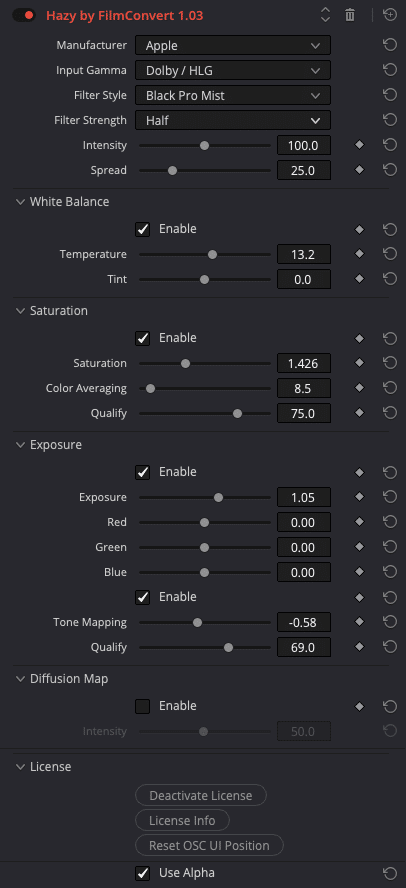
What we were testing…
We have tested Hazy 1.03 on Apple Silicon, but it works under Windows too (without FCP-X, of course). Just like their other tools to simulate properties of traditional film, Hazy should normally be applied scene-referred. So, it offers choices for the input from all the popular cameras and their log versions, from Apple Log to Z-Log2, but also for Rec. 709 or HDR. But there is more flexibility, since under Other you’ll find post formats like ACES, Cineon, or linear. After all, it’s a simulation, so you are free to do what you or your clients like in the end.
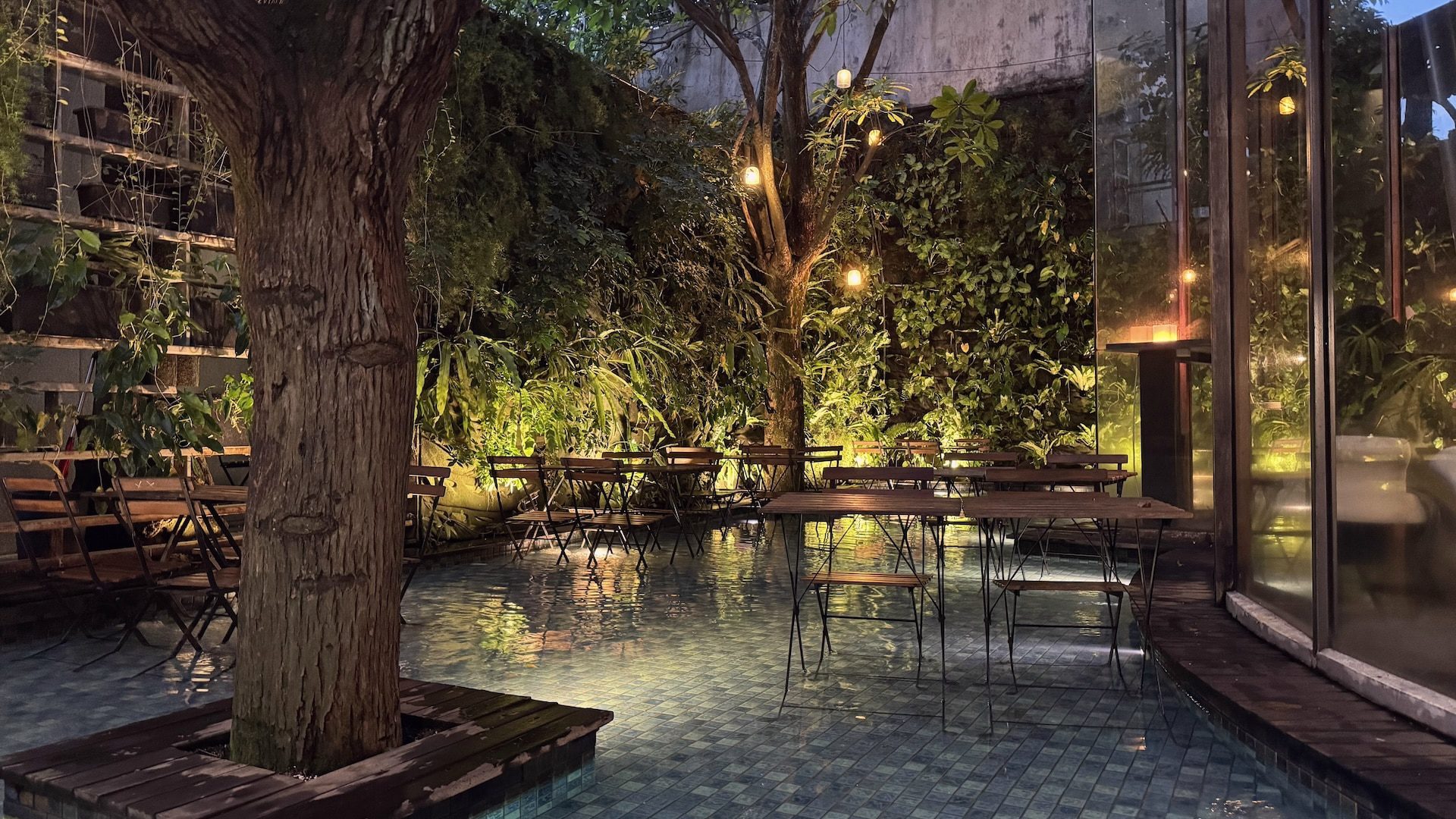
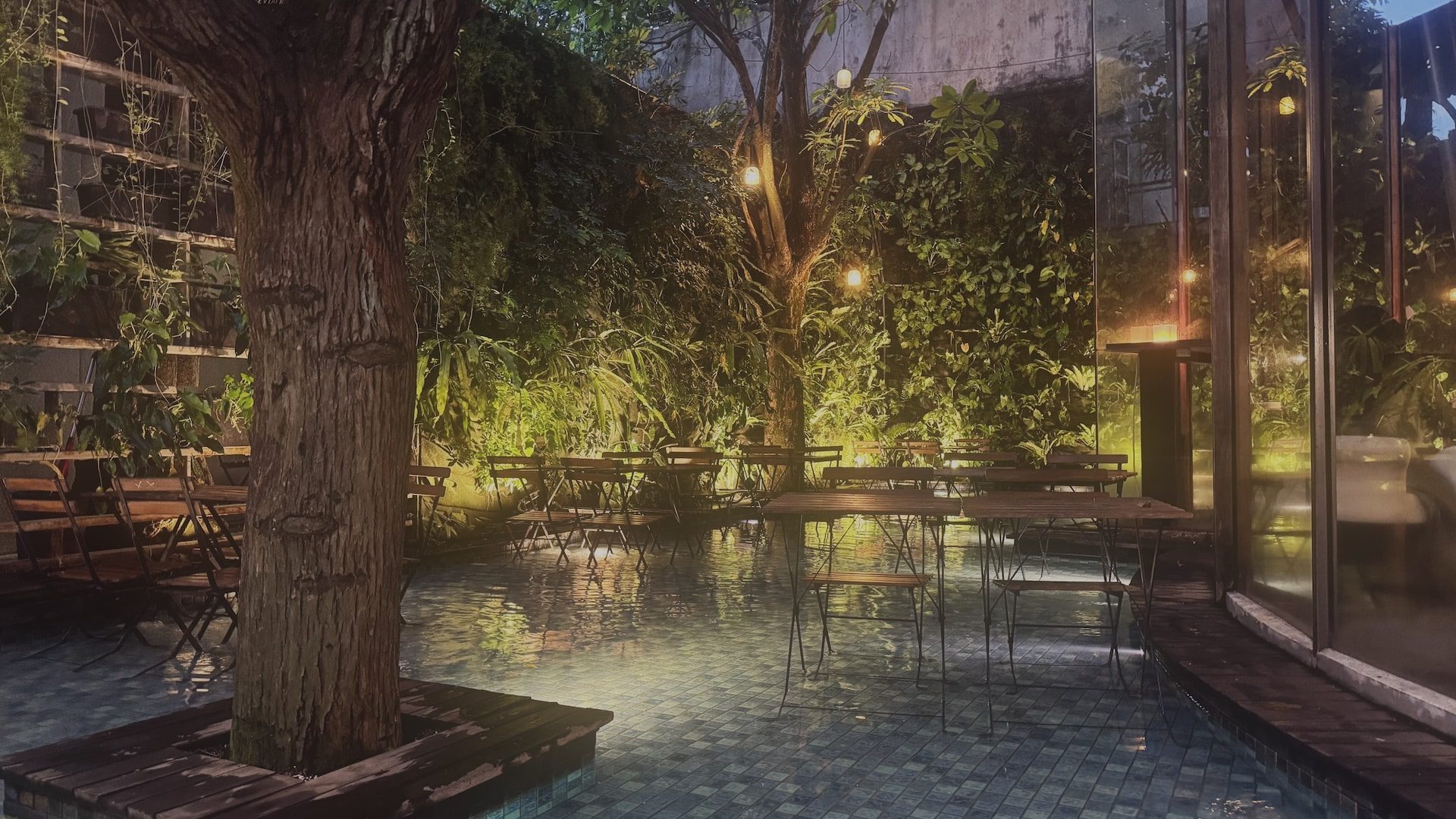
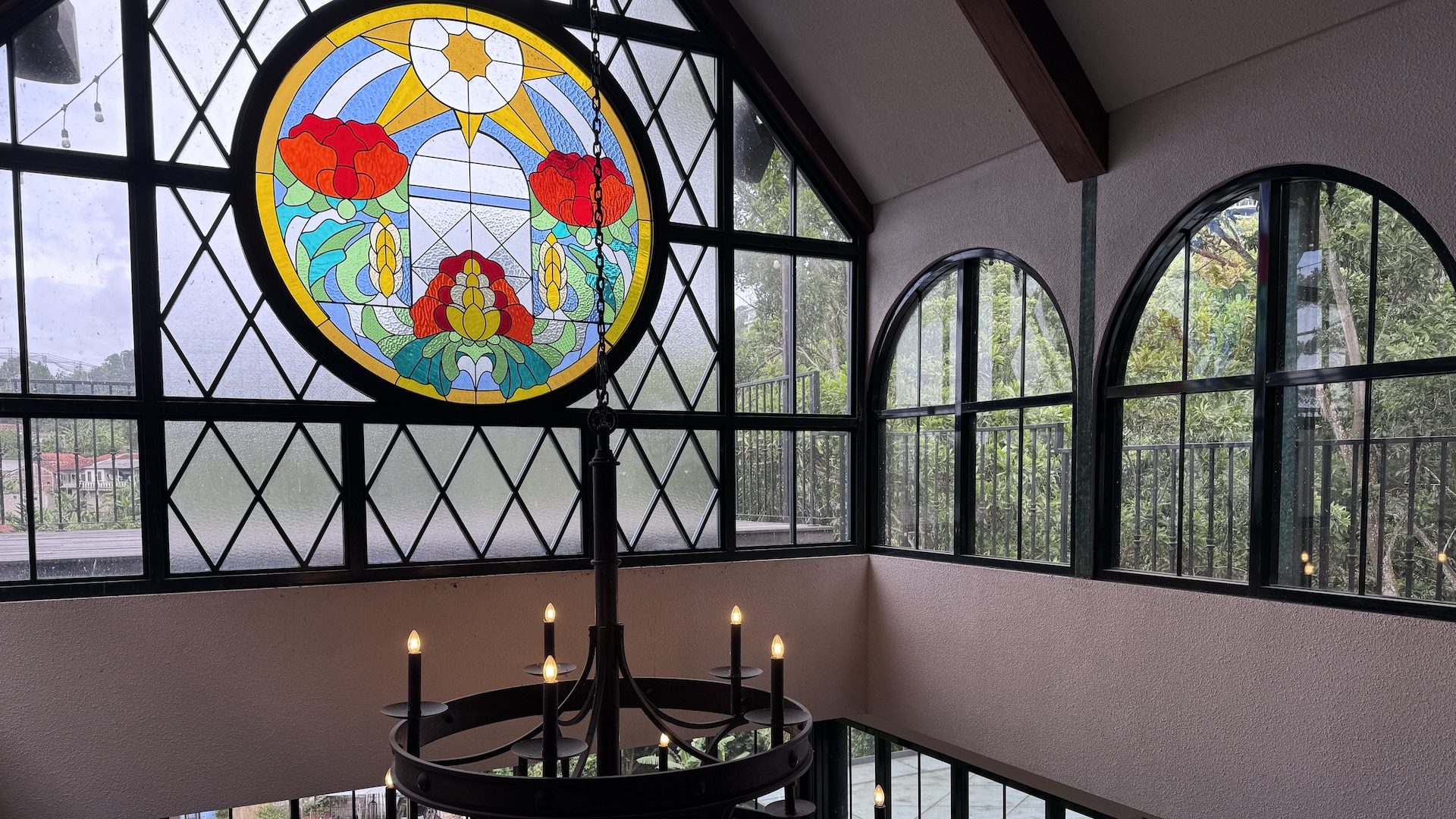
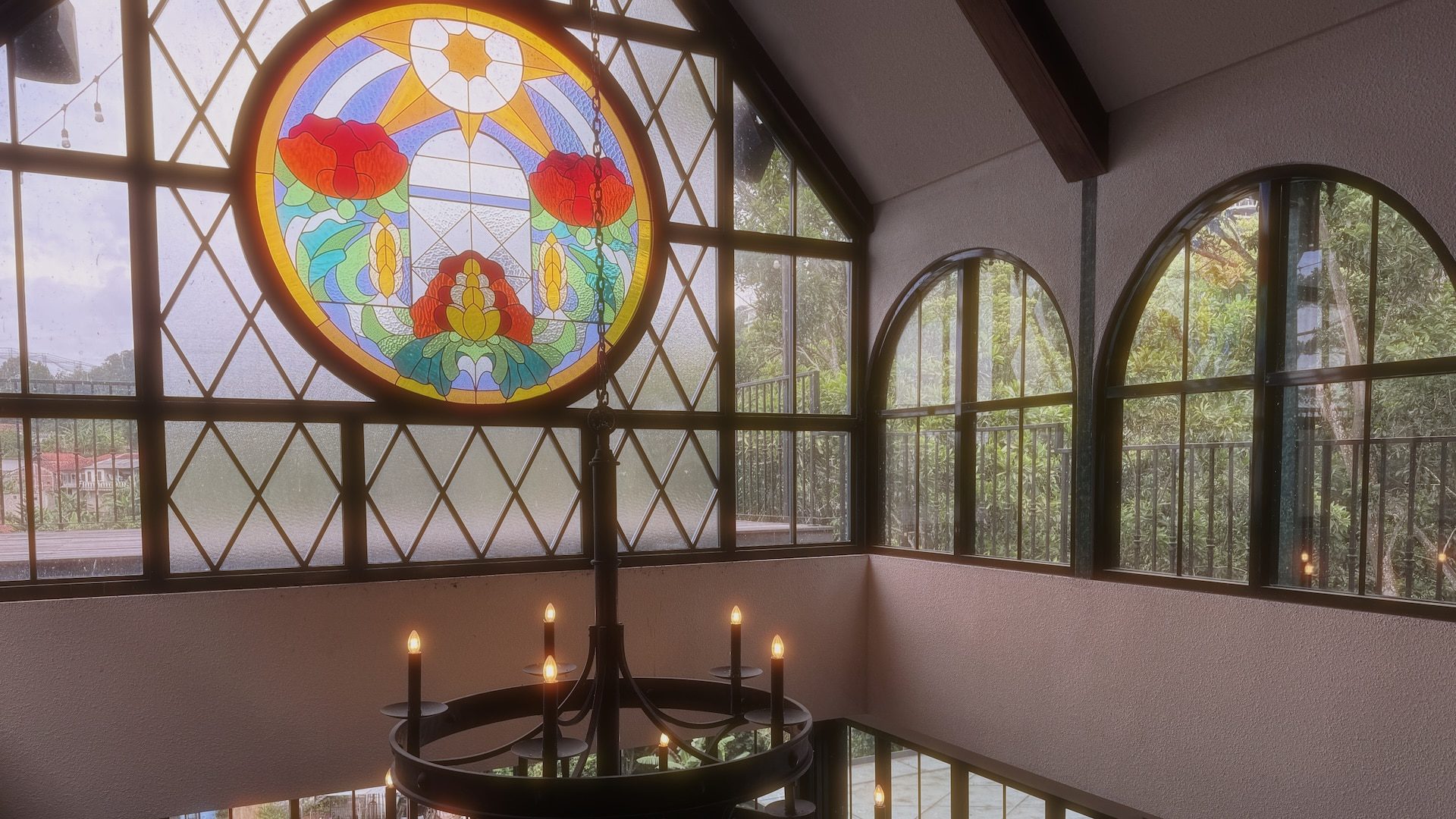
Since DR Studio has an excellent tool called Face Refinement to take care of your actors appearance, we applied the diffusion tools to rooms and landscape instead. Of course, Hazy has a whole list of the usual filters, most of which are defined for strength by a fractional value from 1/8 to one, just like the optical ones. Bloom works with a percentage, and Diffusion uses a multiplier starting with one. Above we applied the popular Black Pro Mist with half strength to the same shot we’ve shown with Scatter in the older article.
The Hazy Resumee
In our opinion it comes pretty close, but see for yourself: there is a watermark demo without a time limit. One very helpful tool is a display of the Diffusion Map itself, which shows where in the frame a filter will be applied and how much detail is taken into consideration. One thing that both software solutions don’t exhibit is the texture you may see in the bokeh (the OOF highlights) from the small particles in most optical filters, like Glimmer or Pearlescent. But I’d consider this rather an advantage, since those are about as distracting as the infamous onion rings from aspherical lenses.
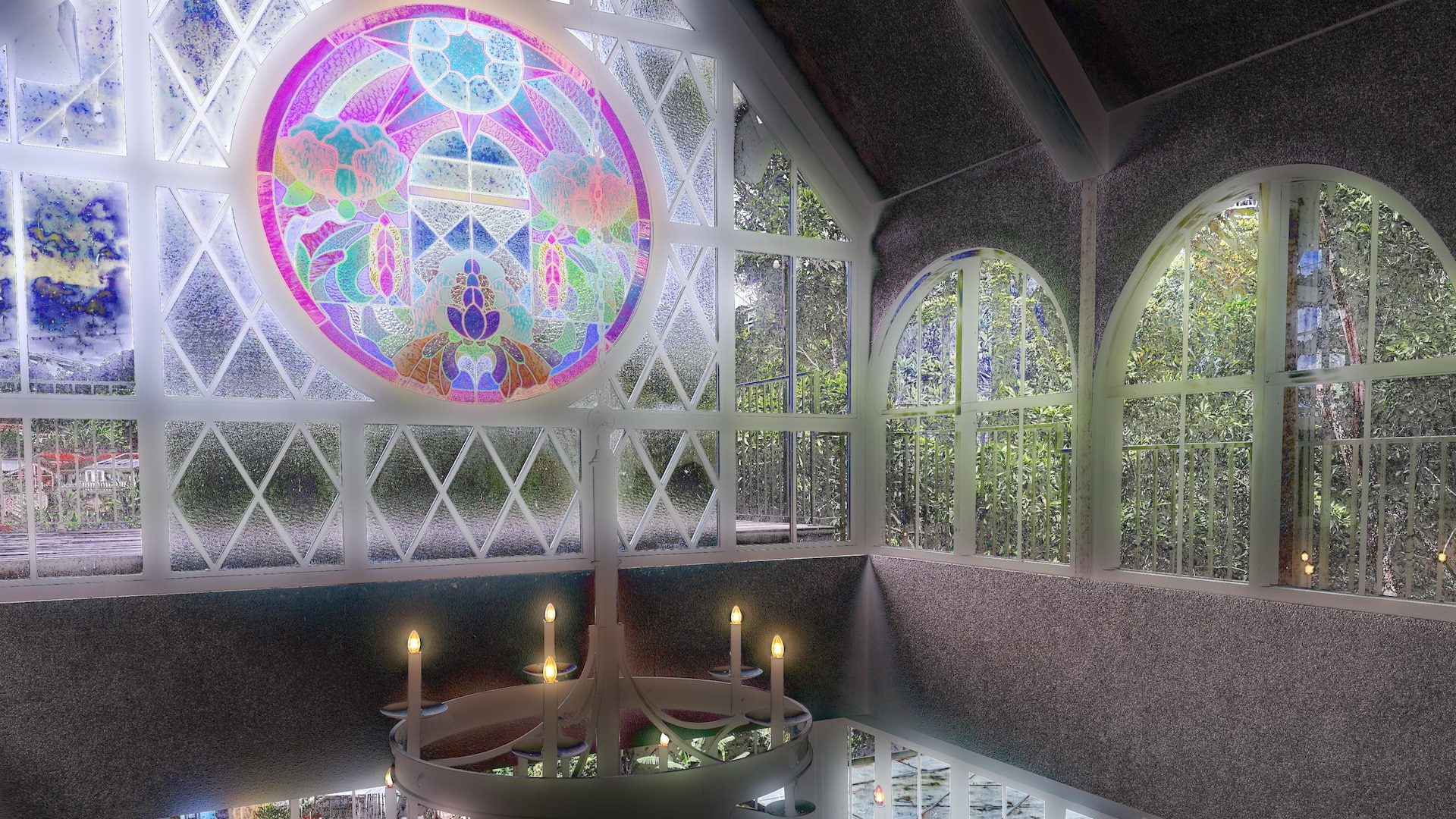
And then, you may need additional filters like Lens Reflections and Lens Flare (DR Studio) to simulate the behaviour of optical filters when light is shining right onto them and the front lens. After all, even with modern coatings, such interaction can be quite specific to your lens plus filter combination. With additional settings for white balance, saturation, and exposure, you can pretty much construct your own filters, for example to handle blown-out highlights from an overexposed sensor.
While simulating the typical contrast reduction of optical filters is not really helpful or needed after the sensor has been exposed, diffusion can take the edge off that biting sharpness in digital images. This is particularly welcome with cameras that don’t offer to defeat artificial sharpness, like smartphones.
Keyframes in Resolve
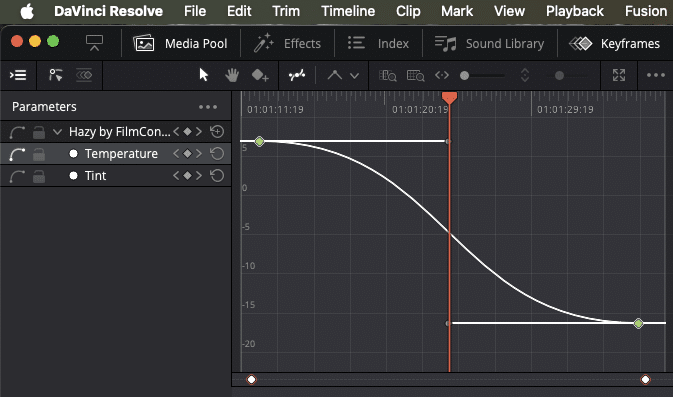
Many of these parameters can be animated and controlled in more detail with the new Keyframes panel in DR20. The keyframes panel is accessed from the Edit page only at this time, not from the Color page. There is one cosmetic bug here, though: the OFX overlay for Hazy is tiny when you use it on the Edit page, while it comes up at reasonable size in the Color page. If not, you can make it visible by clicking “Reset OSC UI Position”, which is to be found under License (for whatever reason).
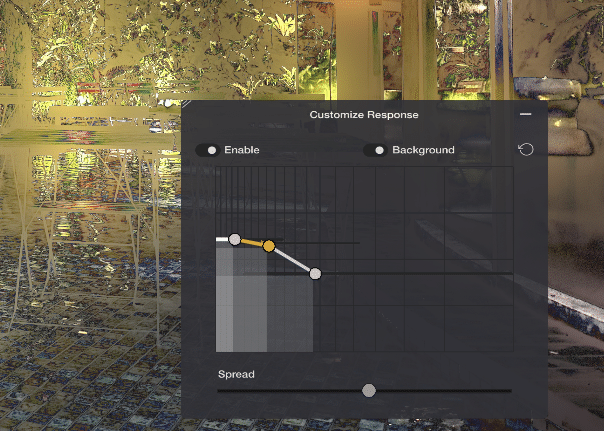
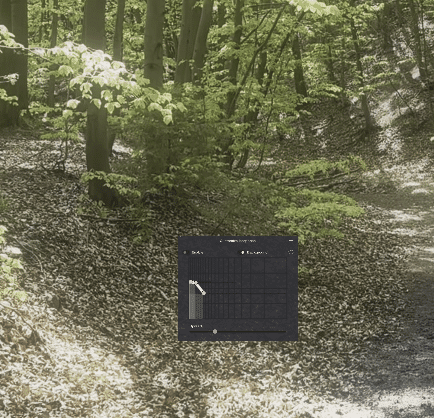
On the Edit page that doesn’t help and you have to fumble a bit at first and grab the corner of that tiny overlay to enlarge it. Once enlarged, the OFX overlay works as expected and is giving you even more control over the filters in Hazy to get your own customised effect. In the end, Hazy may be a bit less perfect than Scatter, but far more flexible. And who says that you need to slavishly mimic optical filters in the digital age?
New Options in DaVinci Resolve 20
In this context, a new filter in DR 20 Studio deserves mentioning: the ColorTone Diffuser. It is not simulating diffusion filters, but pre-flashing film or edge-lighting diffusion, so it also has some diffusion capabilities. It offers most usual color spaces and gammas too for input and, apart from some presets, it’s highly customisable just as well. Once customised with “3D LUT Compatible” activated, which disables features incompatible with a LUT, you can even generate a LUT from it to be applied to cameras or monitors.
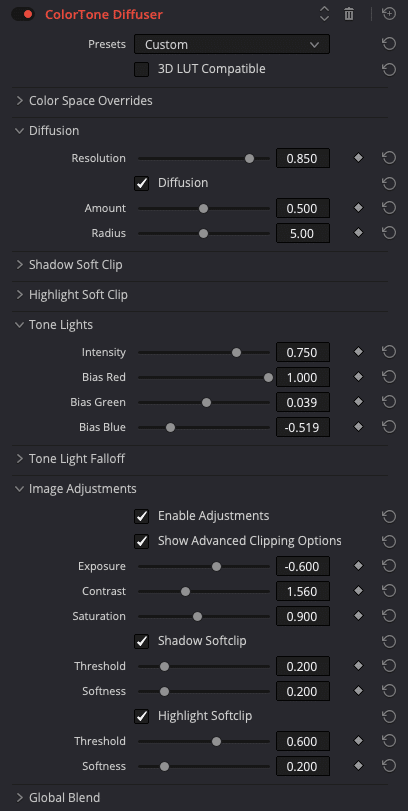
Finally, we’d like to mention the Glow and the Light Rays filters, which have been even in DR free for a while, but now got Atmosphere added in version 20. This animates the glow or rays emanating from light sources (in case you forgot to smoke the room), even with some turbulence in the air. So you can add further realism which is not to be found in the more basic filters listed above.
Performance
On a Mac mini M4 Pro, rendering a test clip of 10 minutes in UHD at 25 fps into ProRes 422 HQ was performed in under 5 minutes with Hazy applied, pretty much independent of the chosen preset. That seems fast when looking at the complexity of the Diffusion Map, but the same clip with just a very basic grade was rendered in 49 seconds. The ColorTone Diffuser needed close to 9 minutes, so we can attest Hazy pretty efficient programming. The GPU cluster was reaching a maximum of 81 degrees Celsius, since we use TG Pro to control the fans. They became audible from that tiny machine, but not really annoying.