



Table of Contents Show
However, it only works with the new version 19 of DaVinci Resolve (DR19 for short), which was only available as a public beta version at the time of testing.
The new panel no longer comes bundled with a studio license at that price. Blackmagic Design (BM for short) has presumably realised that only a few buyers of a panel do not yet have one. However, even with a separate license, the price is lower than its predecessor.
Build quality
While the older model had a lower shell made of light metal and thus weighed a good 3.5 kilograms, the new one is made of plastic and weighs just under 1.2 kg. It has also become significantly smaller; at around 36 x 19 x 4 cm, it is only slightly wider than our 16″ MacBook Pro. It is obviously aimed at digital nomads, which is also emphasized in the advertising by the combination with an iPad.
There is a recess in the rear edge, which is not primarily used as a shelf for writing utensils, but is perfectly matched to an iPad in terms of tilt angle and balance. Even the additional cut-out in the centre serves this purpose, as otherwise you would have to remove the tablet to switch an app. However, iPad owners who order the panel straight away will be disappointed: there is no 19 beta version for iOS, only for Windows, Mac OS and Linux. It will only work with the iPad in the final version.
The material doesn’t look ‘cheap’, unlike the older version of the Tangent Wave, for example. But the matt surface is quite sensitive to fingerprints. The tactile feedback of the keys feels even better than on the predecessor with its somewhat spongy rubber keys. The trackballs are no worse, but the outer ring has become much lower. The raised outer edge on the older model may look a little less elegant, but it prevents the trackball from being accidentally twisted. The ring is held in place magnetically and makes it easy to remove the trackballs for cleaning.
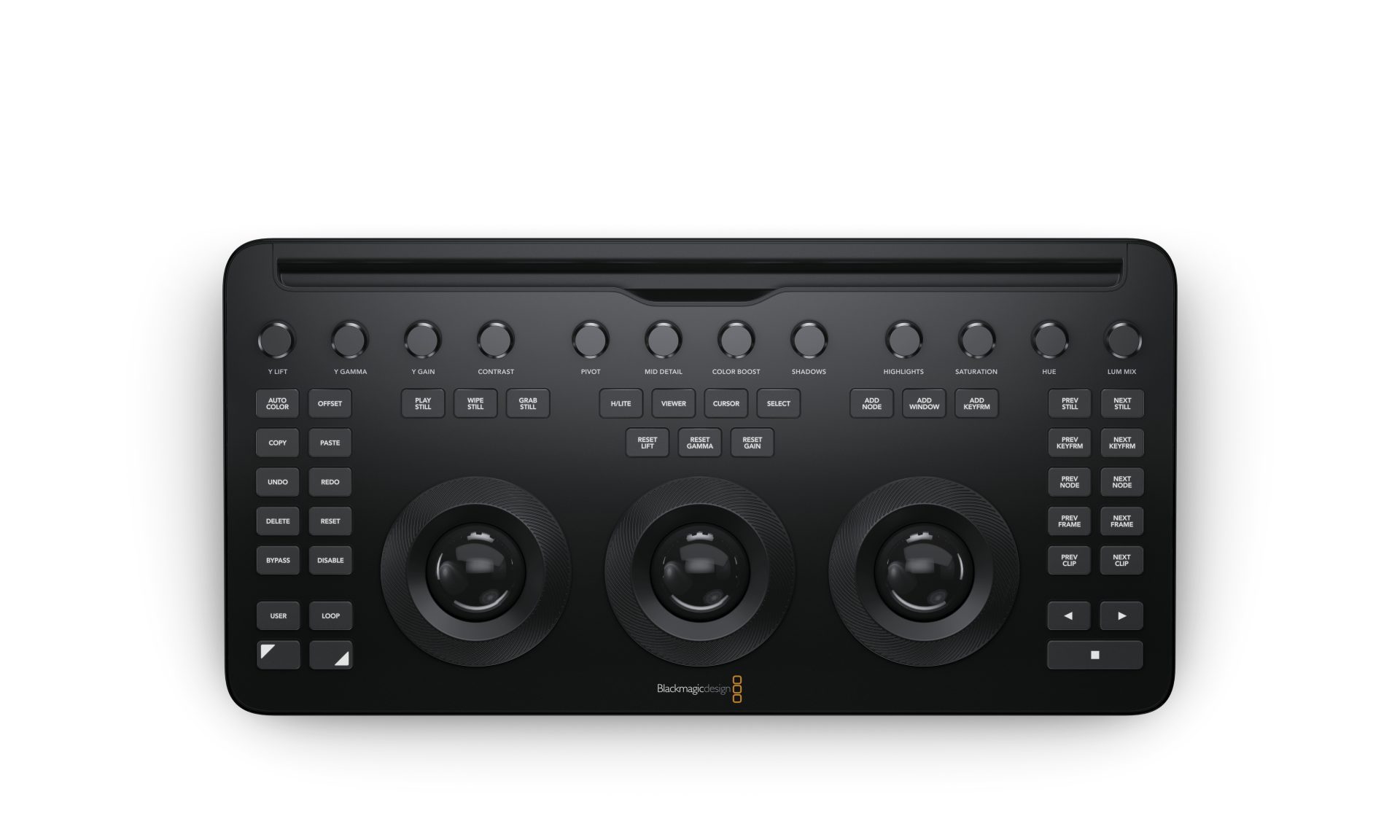
Although the rotary controls at the back have been regrouped, they fulfill the same tasks as before. They work with optical coding and therefore have no end stop. Furthermore, the respective value is reset by pressing the button, but the perceived feedback is somewhat less clear. The rotary knobs have also been lowered, which in turn makes it easier to access an iPad. Anyone who previously had a blind grip on the positions for the subdued lighting in the studio will swear at the beginning because you often miss the mark.
Compared to a Mini Panel, all secondary curve functions such as Hue vs. Hue, control of the qualifiers, the colour warper and for Dolby Vision Trim are missing. In addition, there are the small screens with the corresponding information to keep track of the wealth of functions. On the other hand, the Mini is considerably more expensive and requires much more space on the work surface, especially in terms of depth.
Power and connection
The Micro Color Panel can only be connected to the computer via USB-C (with an adapter if necessary) or Bluetooth. An iPad can only be used sensibly via Bluetooth, as the only USB-C connection is usually required for external mass storage devices. With a wireless connection, the panel is powered by an internal battery, for which there is unfortunately no main switch (as with the Speed Editor).
When DR19 is not running on the computer, the panel should automatically go into sleep mode with minimal power consumption. With the first version of the firmware, this did not really work, so that the battery was drained quite fast when the computer was nearby. With firmware 2.2, the battery lasts longer, but not as long as in the Speed Editor. In contrast, we found it easier to connect the panel to a PC via Bluetooth straight away. Under Mac OS Sonoma, we first had to delete several other connections before the panel responded.
Unfortunately, it is no longer possible to delete the entire list in the system settings, as was the case with earlier versions of Mac OS, so you will have to experiment. This problem occurred even though no Logitech devices, which are notorious for such problems, were connected. It was simply an Apple keyboard and mouse (albeit slightly older ones), a Wacom tablet and sound output devices. After successfully connecting to the panel, we were able to reconnect everything without any problems.
Operation
The confusion of experienced users applies even more to the buttons. There are now several more of them, which previously only existed on the more expensive Mini Panel. In addition, most of them have two or three assignments. The separate buttons for the trackballs have been omitted; there is now only one group in the centre with triple assignment. Switchers will often reset the wrong value here too, until it got back into their muscle memory. The remaining buttons are now arranged symmetrically on both sides, and important buttons such as Bypass, Disable, Loop etc. have been moved to the left.
Right-handers will certainly have a different opinion on this point than left-handers, but overall you will hardly have to reach for the keyboard and mouse – the comprehensive multiple assignment is both a blessing and a curse. Even the trackballs and rings have additional functions thanks to the switch buttons at the bottom left, especially when creating Power Windows without a mouse or drawing tablet. There is also no need to switch to the tab for tracking, as this can be triggered directly with the playback buttons using the Shift key. Hold down the right Shift key to control the scaling of clips (input sizing). This is extremely welcome if size adjustments transferred via XML from other editing software are not recognized correctly and quick corrections are required. However, if you want to adjust several parameters simultaneously here, or with Power Windows, you will still have to keep one finger on the Shift key all the time.
You also have to crank for far too long to adjust the soft edges or the inclination of a selection, for example. However, the sensitivity of these operating elements can be adjusted in the user settings under “Control Panels”. You will probably also want to change the brightness of the button lighting there, as it is initially set to ‘full power’. This is clearly too much for any reasonable room lighting when grading. The labelling of the rotary controls is not illuminated.
Some buttons indicate their activation by being coloured green, including OFFSET and CURSOR. Due to the lack of a fourth trackball, the right trackball becomes the corresponding controller when the offset is activated, while the other two outer rings control the colour temperature and tint. Cursor allows you to control the cursor in the display window, e.g. for the colour picker or the control points in the colour warper. The cursor is also visible on the client screen, so that you can point to something. BYPASS and DISABLE, on the other hand, light up red as a warning when activated.
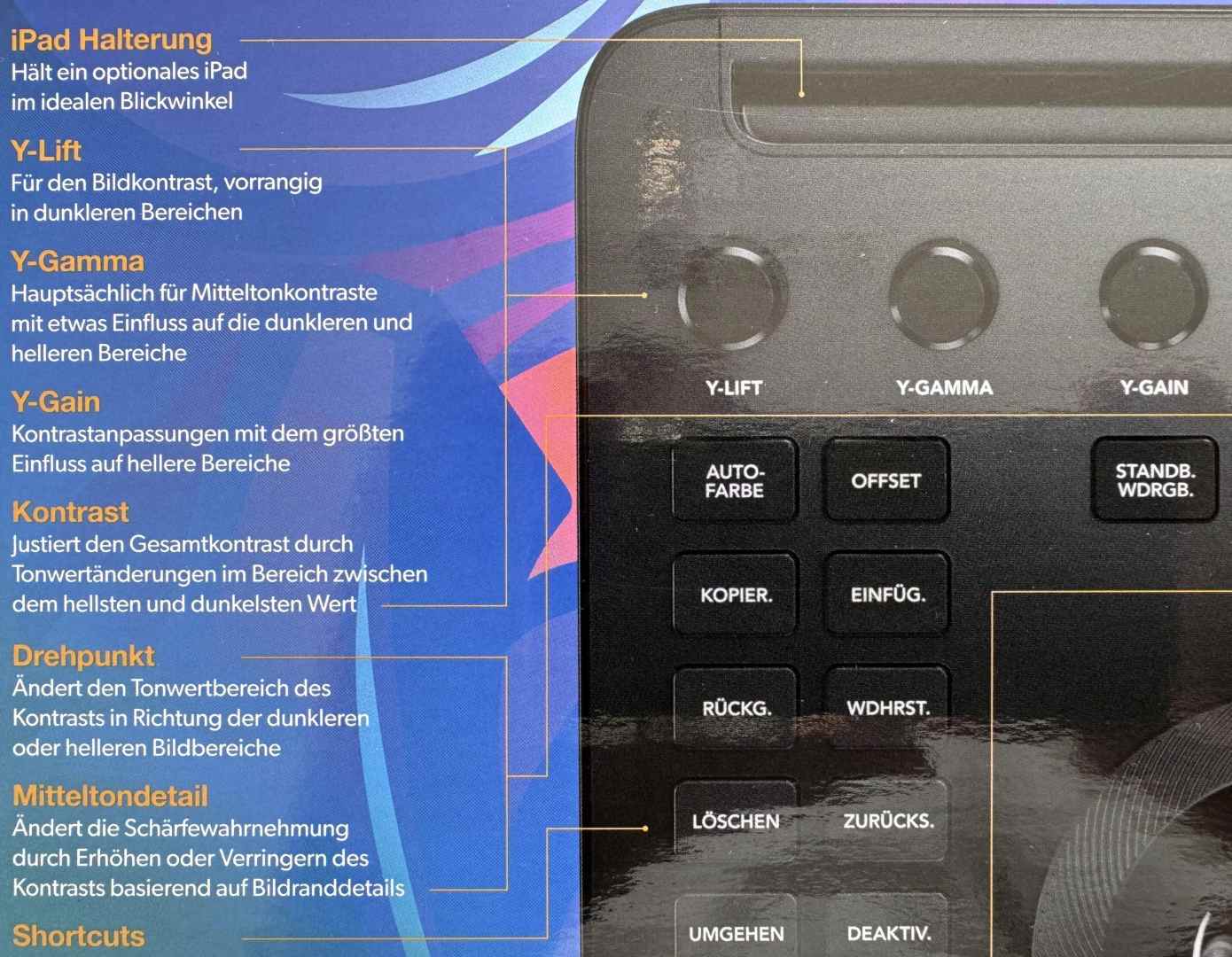
Incidentally, our test device came with German keyboard labelling, and the panel is also available in other languages – we have already seen it in French. You don’t necessarily have to like this, as the German language unfortunately forces you to use rather cryptic abbreviations on the compact device. “WDHRST.” instead of REDO or “SCHLB. HINZUF.” (add keyframe) instead of the already abbreviated “ADD KEYFRM” do not really make orientation any easier. Why translate keyframe literally at all? Node is not translated either. However, we were assured that you can also get the panel in English from German dealers.
Even in English, the buttons only offer space for the standard assignment; you have to learn the respective function or hang it on the wall. The supplied quick start guide, which was translated into easy-to-understand German in our sample, should be kept in a nearby place for the time being. This is obviously the manufacturer’s intention, as it is protected by a plastic surface. You can find a very clear alternative from Simon Lamarre-Ledoux at imgur.com/mK13lkg to print out, and Mr. AlexTech has a video for beginners.
Points of criticism
Some of the mappings are a little unfortunate. For example, you have to spread your fingers a lot between the left shift key and OFFSET to switch to log wheels, as the LOG key no longer exists. This means you only get visual feedback on the screen. And why can’t you switch directly to HDR wheels with the right shift key plus offset? After all, they can be operated with the panel after reaching for the mouse.
Some people on the Internet also complain about the presence of the AUTO COLOR button, saying that it is superfluous for users of such a panel. I wouldn’t agree with that, because with a little background knowledge it can be quite useful. Examples can be found at youtu.be/NLT-Ozou20w by Alex Jordan (Learn Colour Grading).
The toggle button can also be used to copy grades from previous clips in the timeline.
But why can’t you simply hold the toggle buttons by double-clicking, like the capitalisation on iOS, and then report this back in green? When creating Power Windows, this would prevent cramps in the left hand and the rotary knobs could then do a lot more, e.g. when keying. Resetting the values for Power Windows is only possible globally, not for individual parameters.
The “USER” button still has no function; the manufacturer intends to add its own commands later. In areas other than the colour page, at least the play and full screen buttons work, even if this does not replace a speed editor. We tested the new panel under Sonoma 14.6.1 and Beta 6 with a MacBook Pro. The firmware was 2.2, and even that may still be in beta testing to some extent.
Comment
Despite some criticism, the new panel is hard to beat in terms of functionality, transportability and price, while at the same time offering good workmanship. We can recommend it even to beginners, because grading is all about speed, as our eyes adapt to color changes in a short amount of time. You have to learn to master such a panel like a musical instrument in order to become a really good color grader.
