



Table of Contents Show
Professionals experienced in teamwork will probably already be familiar with the following. But what about everyone else who, after initial successes, approaches projects that involve real money and real customers? Mistakes in the workflow and the need to fix them can push your real hourly wage well below the minimum promised by your government, not to mention the loss of your first important client.
We will highlight the challenges of roundtripping (i.e. the reciprocal handover of editing steps) with Premiere Pro (PPro for short) and DaVinci Resolve (DR for short). But the solutions are similar for other pairings, although the DR manual contains considerably more information on exchanging with Avid and even Final Cut Pro X than for Premiere. The two manufacturers probably don’t like each other that much …
The Problem
Unfortunately, some semi-informed people in the infinite expanses of the Internet keep claiming that such a co-operation is quite simple. But what’s much worse is that some project participants pick up on such information and even believe it (kind of reminds you of Corona, doesn’t it?). If these people then have something to say in the project – perhaps even more than those who are better informed – the whole thing can become exhausting. There’s little point in trying to talk a team member who really wants to do the rough cut on their own device out of their usual programme if the production is behind it.
It’s better to warn this person about the risk of working with original files – possibly even on the chip from the camera – and having to look at dull clips in log (and grumble about the camera person). You’d better tell them that you’ll provide them with carefully backed up and prepared material for the edit, which will also run on a less powerful laptop or even a tablet (yes, Luma Fusion can export an XML). The biggest remaining risk then is that the person on the other end uses effects that are lost in transit. In addition to the ones we’ve done here, you’ll need your own tests and then precise agreements on what is and isn’t allowed. Hard cuts always work, but even a fade can cause problems.
Hand over Entire Projects?
Forget it! First of all, we must unfortunately clarify what does not work: You can’t transfer projects between different NLEs. No! Nope! No way! Nada! The project management and their file formats are too different, as are the individual tools and their possibilities. You don’t even have to assume that the manufacturers are deliberately closing themselves off. These systems have literally grown over decades, and file management is ultimately the foundation of non-destructive video editing. Nobody changes this without absolutely compelling reasons.
Technical development alone means that software is usually not even fully compatible with its own previous versions. Even if some programs offer to save in an older format, it is better for everyone involved in the project to use the same version. If it is necessary for reasons of hardware performance for someone to work with an older version, the same procedures and tips apply as below, just as if you were dealing with different software, unless compatibility is expressly guaranteed by the manufacturer. Even then, we recommend carrying out your own tests. We are not alone in this opinion: ProVideo Coalition.
In addition, each manufacturer has its own solutions for working with specialised software, i.e. for compositing, audio editing (DAW) or video compression. Adobe has After Effects, Audition and Media Encoder with Dynamic Linking – not always entirely painless, as you can find out in the relevant forums. Apple has Motion, Logic Pro and Compressor, but in essence this only involves the semi-automatic transfer of rendered files or files to be compressed. Logic Pro can read XML files from FCPX, but even here there are stumbling blocks, as you can read at macProvideo. DaVinci Resolve goes the furthest by having integrated Fusion and Fairlight years ago. However, until today the separate version of Fusion is still more stable, the transfer can be done via the VFX Connect Clip and is then similar to the procedure with FCPX and Motion.
I won’t go into sound editing here, but if you want to work with Logic Pro, you can read the article above and take the diversion via FCPX if necessary. The same applies to Audition, see Larry Jordan‘s workflow here. The topic of working with Pro Tools would require a separate, extensive article by an audio specialist (no, it’s not uncomplicated either, even though this is repeatedly claimed). And if it doesn’t always work within the family, how is it supposed to work with the competition? As I said: Forget it! Anyone presenting serious tips and workflows on the internet will therefore talk about timelines and not entire projects.
Editing Material
For all non-conformists around here: Make friends with the term conform! This requires a clear division of labour, detailed agreements and careful testing of the workflow, but then you can definitely cut with one system and do the colour design with the next. As a rule, versions of the camera clips that are easier to save and edit are created for this purpose – the offline clips. The resulting edited versions have to be precisely linked to the camera originals for grading. DR was originally a pure colour grading system. It therefore offers a wide range of options for combining edited versions from other systems with the originals via re-conform, which the manual describes in detail in Chapter 56 “Conforming and Relinking Clips”.
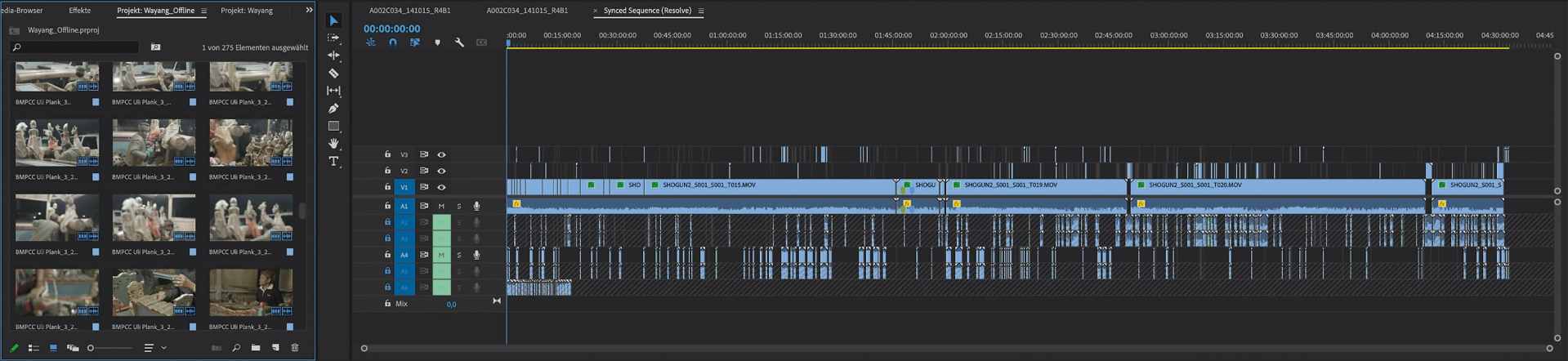
The most common one is probably the collaboration between Premiere for editing and Resolve for colour grading, simply because of their widespread acceptance, as both programs are available for PC and Mac. We don’t want to start a religious war here about who is better (or has the fairer business model). The fact is that some people have been editing on PPro for years, but DR has the more comprehensive grading. Even though both programs largely (but by no means completely) understand the same video formats, you only really need the full quality of elaborate RAW or high-resolution log files when grading. An online/offline workflow is particularly helpful if you are not sitting next to each other, being connected to shared storage.
Creating Offline Material in Resolve (Proxies)
It is therefore advisable to use DR to capture and back up the originals. The Clone Tool is available for the backup if you don’t want to use one of the specialised programs such as ShotPut Pro. After backing up to several physically separate media, import the clips into a timeline with the appropriate frame rate.
This is where the first pitfall occurs: even though Resolve can handle a timeline with mixed frame rates (fps = frames per second), this is not recommended for roundtripping. Since such clips with deviating fps are often only intended for slow motion, the originals should be set to the target speed in the Clip Attributes. This results in the best image quality without any additional computing effort. In principle, Resolve can also handle different fps rates when importing from PPro, but this only makes sense if the final render is also carried out in Resolve.
Other changes such as speed ramping can be problematic (more on this later). If, on the other hand, clips are to retain their different fps or the other party wants to work with more complex fades and effects, you should point out possible problems and allow for additional work. It is better to limit yourself to simple cuts and fades for this approach during offline editing in PPro and to do more complex work together on a well-equipped Resolve workstation. Then you just have to make sure that your originals all contain a correct timecode (TC for short). They shouldn’t all start with 0:00:00:00, which usually indicates unreadable TC or none at all, and should have unique names.
Separately recorded sound should already be prepared (and checked) in Resolve, synced by TC, with Waveform or, if necessary, by hand. The best way to do this is to create a timeline with the maximum number of audio tracks that any of your clips require. Then put all the clips, e.g. for a working day, into a timeline as a day roll and the originals into an appropriately named bin. If the recordings are in a log format or the camera operator used a special LUT when recording, you should convert them to Rec. 709 or include the LUT so that there are no complaints regarding the picture from uninformed people. DR offers extensive options for the naming and bin arrangement of such clips with its “Smart Bins”.
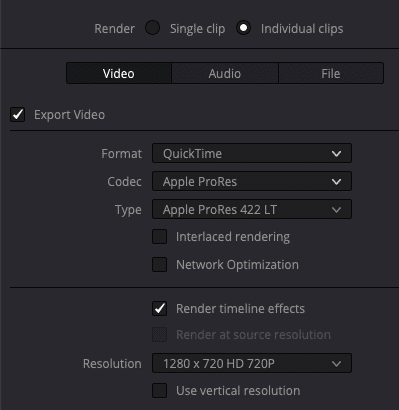
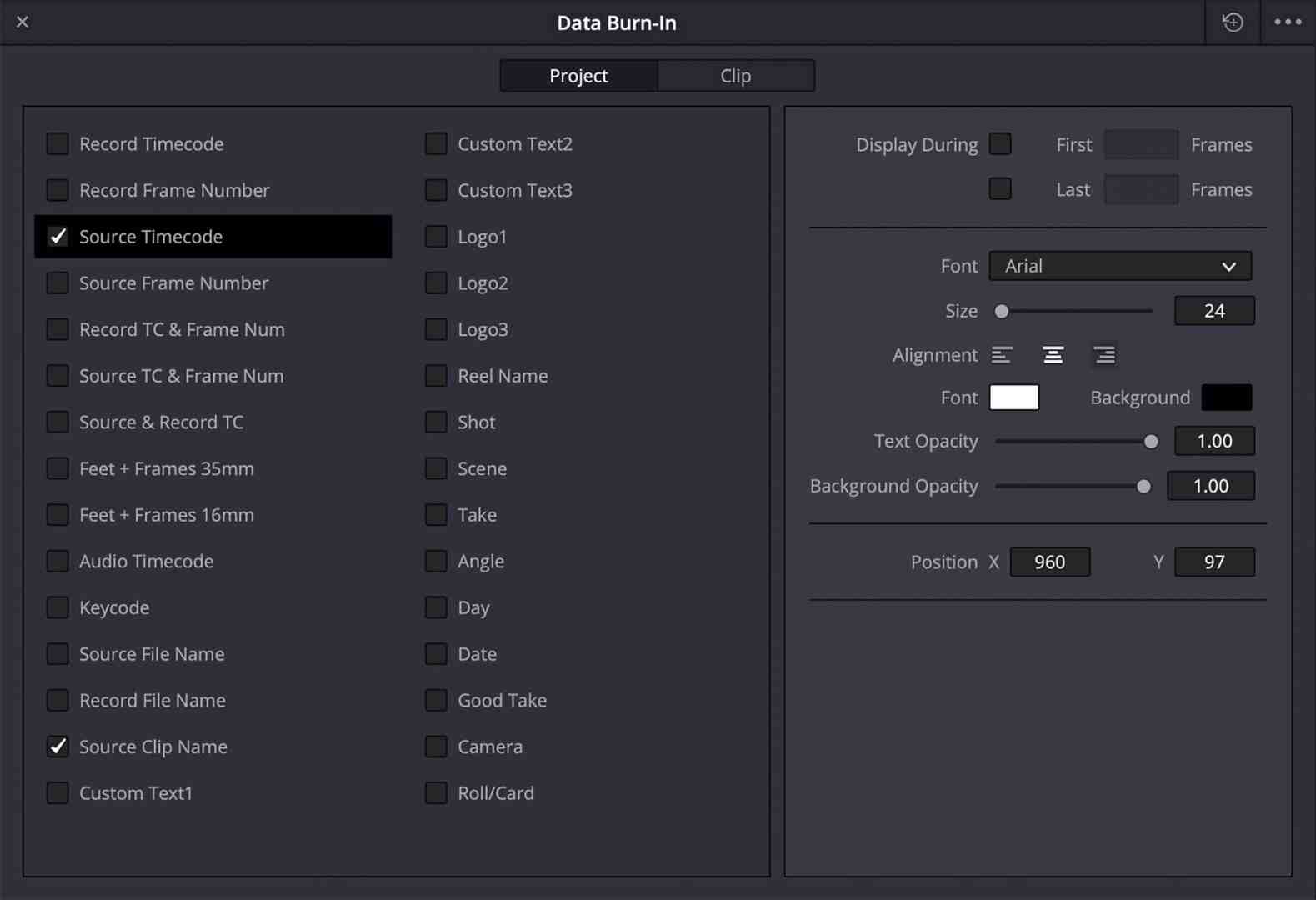
It is best to include the TC and the file names in the image, so that you have an additional option to check for placement (unless the recipients object). The automatic creation of proxies in DR is now capable of such “burn-in” for the tasks described here, by activating “Render timeline effects” while rendering with the option “Individual clips”. If you have a very high shooting ratio, you can save lots of space by first sitting down with your partners to cull, creating a rough cut and consolidating it using Media Management. Be sure to link to the new clips and render the result as proxies first. Unfortunately, there is no option when transcoding with Media Management to burn information into the image or make an initial colour correction in Media Management itself. You therefore have to output the timeline as individual clips via the Deliver page.
The sound always comes across as the original without corrections, but if desired in several tracks or even in separate files. Linear PCM in 48 kHz is recommended as the format; also with a higher bit depth or sample rate if some sources allow this. For the image, use an I-frame codec that does not place too much load on the receiver’s computer and is readable in any case. MOV (and not MP4) is recommended as the container because there are no problems with the TC track. ProRes is suitable as a codec for all systems, but CineForm or DNxHD/HR is just as good for PCs. MXF in OP1A as a container is also okay for Premiere (but as MXF OP-Atom only for Avid). Surprisingly, PPro can write ProRes into MXF, while DR doesn’t offer that combination.
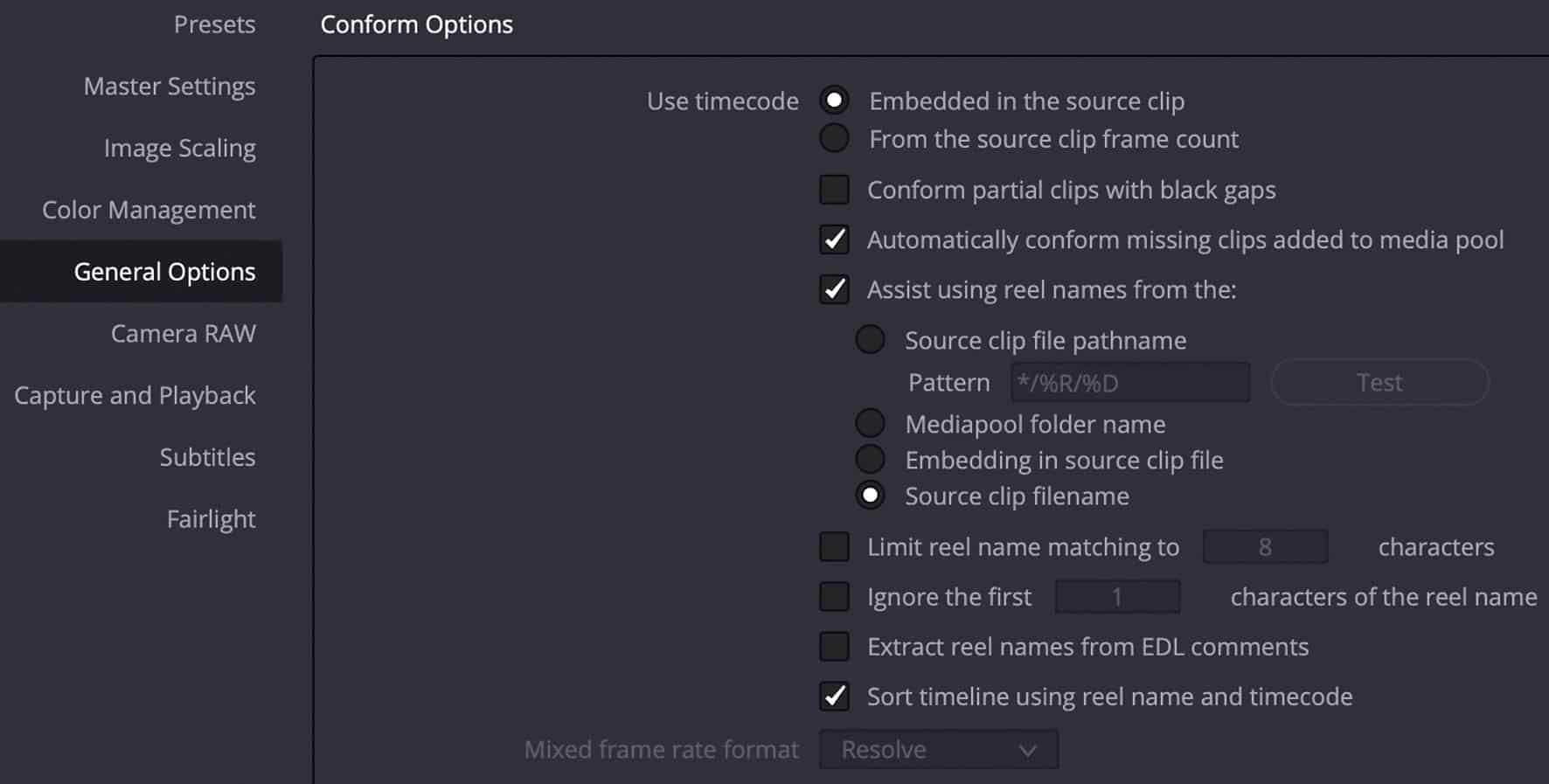
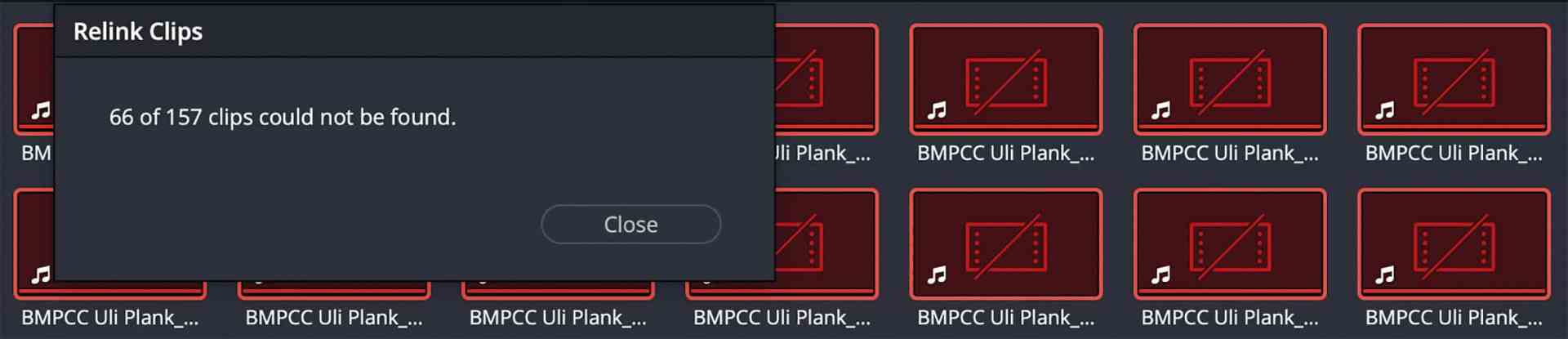
These codecs are easily scalable in terms of quality and file size, but are of course larger than H.264/265. Nevertheless, you should avoid such GOP codecs, because depending on the hardware performance, they may run worse on the target computer. Even when producing in 4K or UHD, offline editing can be done in HD if the originals have been checked for image sharpness beforehand. As DR allows two installations, you can run the transcoding on a weaker second computer, as it blocks the workstation for a little longer depending on the hardware. DR will point out any missing clips. If your proxies carry the same name and are in a subfolder named “Proxy” under the one with the full-res originals, DR can switch between them automatically.
Attention, Pitfalls!
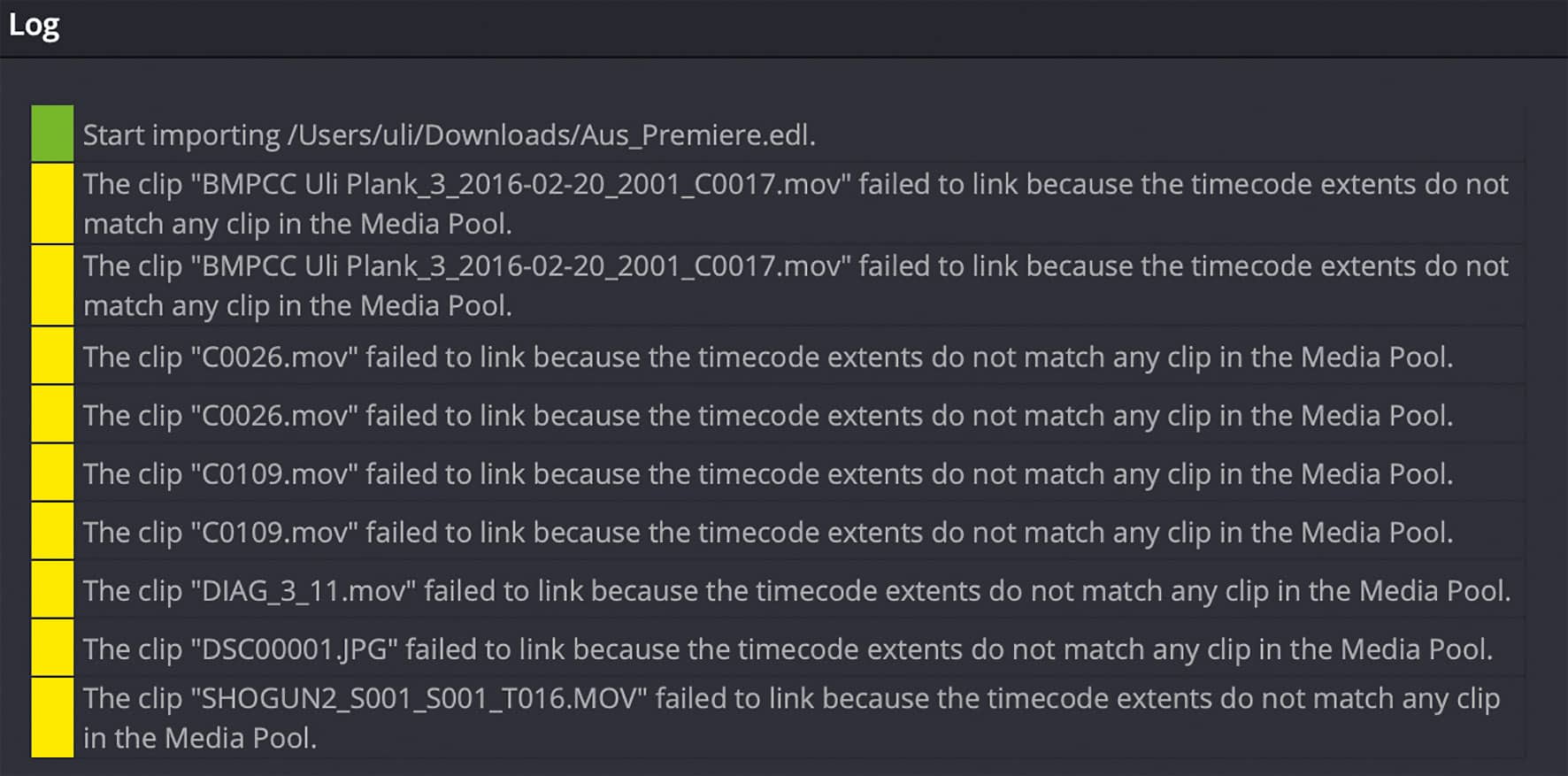
Some semi-professional cameras pack a non-standard TC into an MP4 header, which is then not read everywhere. It often happens that TC in MP4 is recognised by PPro, but not in FCPX, for example. If you determine with MediaInfo that there is a TC, you can re-wrap the material to MOV, then the TC should be fully readable. This can be done quickly and losslessly with a tool such as Shutter Encoder (donationware), even in batch processing.
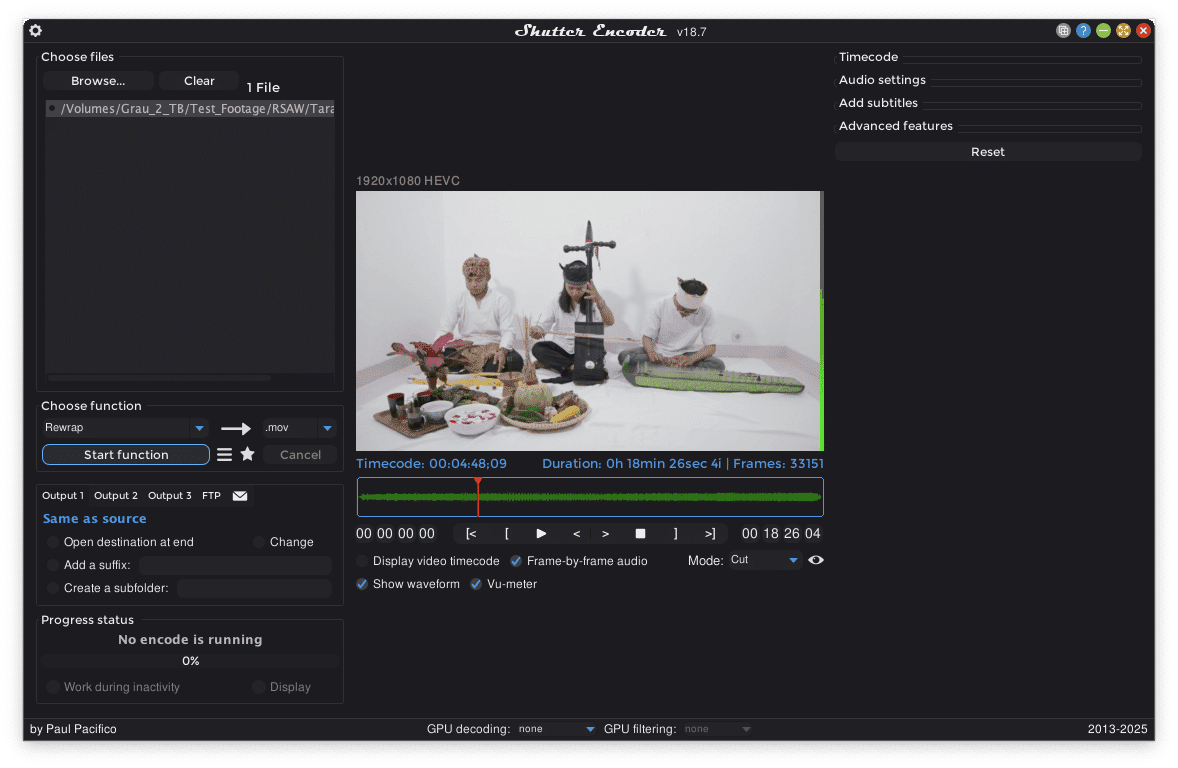
If there is no TC at all, you can use QTchange from Videotoolshed to add one to the MOV based on the creation time. This is not necessarily accurate enough for sound synchronisation, but at least it is close. Alternatively, you can find a few Python scripts in the Resolve forum. It is also quite bad when amateur cameras keep assigning the same names after changing the storage medium. This can often be fixed in one of the camera menus, but if it has already happened, it is better to also use the “Reelname” or “Reelnumber” field in the metadata (in PPro and FCPX this is called “Tape” or “Tape name”).
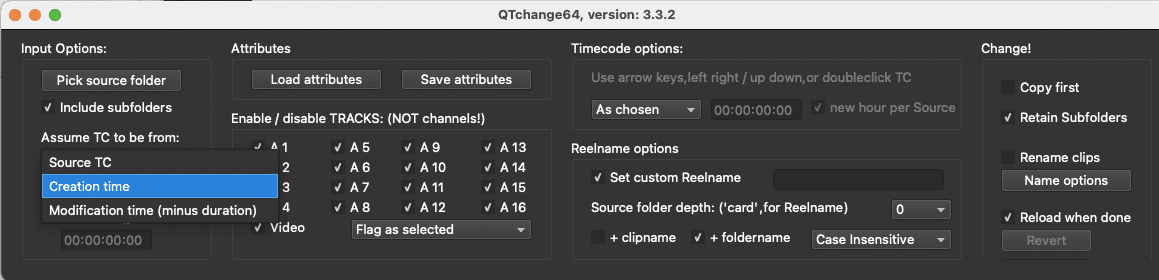
This field should always be used to ensure the link back to the originals. In the professional sector, it is usually already filled in by the cameras, but they do not generate duplicate clip names anyway. If this information is missing, it can be added in QtChange too. However, it is not read by every programme. If this is not the case, as in Resolve, you must place the clips of each memory chip in a separate bin and use this specifically for conforming (Conform from Bin). Now you can pass the rendered material through for editing. But how do the editing decisions get back to Resolve from PPro, FCPX or other editing programmes?
Via EDL
The oldest method is an EDL (Edit Decision List), which recognises a maximum of 2 video tracks and 4 mono audio tracks. The most common format is CMX3600, named after an editing control system from the 1980s when people still worked with three mechanical tape machines. This is practically always understood, but unfortunately only consists of the TC information for hard cuts and any crossfades, plus the clip names. Some of the other fades are named in the EDL, but they become fades in DR. Any effects are ignored.
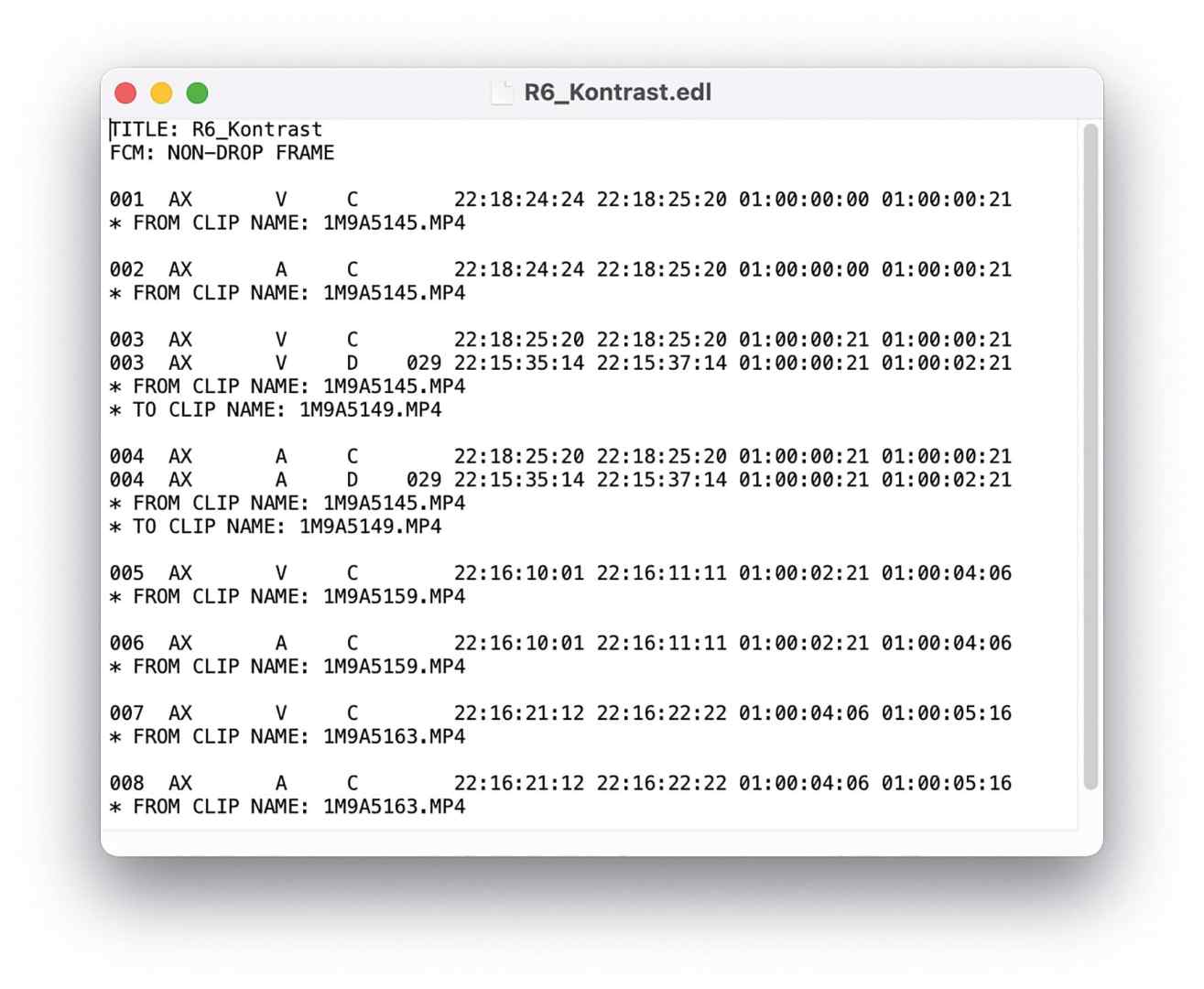
Anyone who turns up their nose at such a stone-age format should realise that it is quite useful for a very reliable and uncomplicated transfer method. However, this requires a clear division of labour and discipline (how awful). It is also not ideal for RAW formats and not perfect for roundtripping, but rather a one-way street from editing to grading if the material or parts of it have not been prepared in Resolve (see above). Rather, the editors cut the originals in their favourite program and render a high-quality version in one piece at the end.
Advantages: All the options that the editing programme is capable of, including resizing, speed ramps, frame rate adjustments, etc., are baked into a single film file at this point. Titles, motion graphics or VFX can also come from a programme such as After Effects. This rules out any misunderstandings on the side of the target software. However, you should switch off any grading attempts beforehand, as the transfer to Resolve may take place in a slightly reduced colour space (and probably not without good reason).
For sources with high compression and a maximum colour depth of 10 bits, such as from filming photo devices or mobile phones, DNxHR HQX 10 bit or ProRes 422 HQ is completely sufficient for transfer. For better sources, DNxHR 444 12 bit or ProRes 4444 (for pixel peepers with a lot of storage space also in XQ) is used. This film should, however, be finally approved as far as editing and effects are concerned, because now only the grading is done. For this purpose, an EDL is also output for the timeline, which is imported into DR as a pre-conformed EDL in addition to the film. In the last step, you have to point to the folder of the clip from PPro. DR then splits everything into individual cuts again, allowing colour grading for each clip.

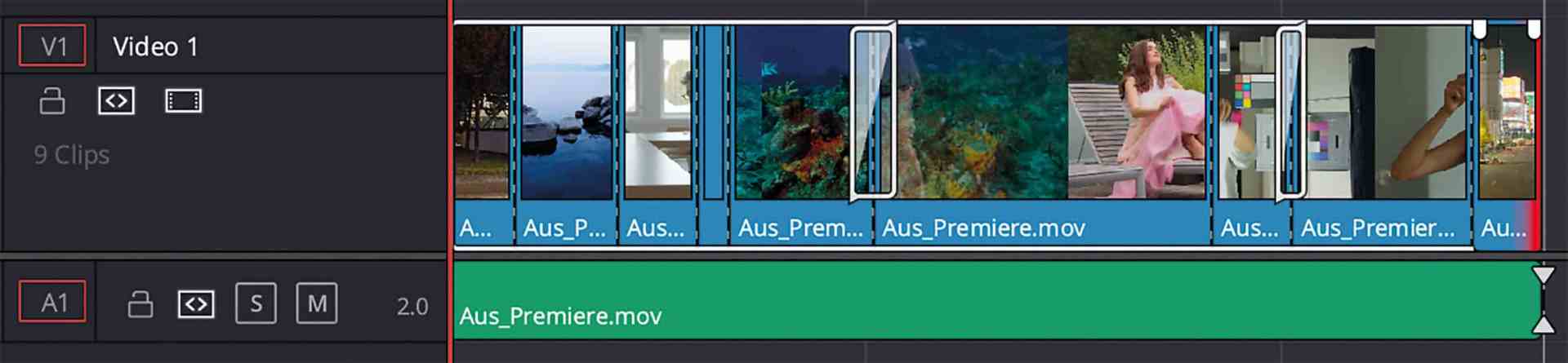
Disadvantages: You cannot colour grade picture-in-picture effects or superimposed graphics separately in DR. There are two options for this: You can either adjust the colours in the editing program using its tools or, if there are only a few elements that require time-consuming correction, you can place them individually at the end of the timeline (preferably separated by a short black) and grade them in Resolve. The result can then be inserted back into the original programme at the desired position. The same applies to dissolves, because the two clips are not accessible separately for the fade period. DR recognises a dissolve based on the EDL, but this contains clips that have already been mixed. If necessary, a sliding correction with keyframes can serve as a workaround here. This technical limitation is hardly noticeable with short dissolves.
In addition, the metadata of the camera originals is not available in DR, so you have to take care of the colour management yourself. This method is therefore not suitable if you have sources in RAW or changing log formats. With semi-professional cameras, this hardly matters because information about their image profiles is usually missing in DR anyway. Careful note-taking and good coordination are therefore required. However, the EDL itself provides some clues, as at least the names of the originals appear there, which usually allow the camera to be identified. Although DR also offers two quite powerful methods for automatically recognising cuts, these are not 100% reliable for fast action or some effect transitions and are more recommended for archive material for which an EDL no longer exists.
The big advantage: There are no misunderstandings between the programmes, and formats that DR does not like on PC (such as DV), or generally incompatible ones like MPEG-2 or ProRes RAW, can be used. Any changes to the cut must be made in DR. However, these are limited to hard cuts with a change of position or shortening, as the original files are not accessible to DR in this way – and therefore no extensions or new transitions. For titles and graphics, however, you can pass a duplicated timeline without these elements to DR, render the result from the grading and add the rest in the original editing software. Finally, you can adjust their colours and contrast directly without having to use DR.
Darren Mostyn has the best tutorial on this, but even he is somewhat superficial and does not mention many problems. Ultimately, we are dealing with destructive editing here, whereas any modern editing system (NLE) works non-destructively in that you can access the unaltered (and hopefully saved) original files at any time. Such restrictions are certainly not to the taste of anyone who is used to the endless tweaking of digital media right up to the last minute. If all the material was initially prepared by DR and delivered to PPro, access to the original files also works via regular import of an EDL, but XML can do much more.
Via XML
The abbreviation stands for Extensible Markup Language, so it is a universal language that is not only suitable for editing information. As an open standard, it is used for a wide variety of data descriptions and is (somewhat) readable for both humans and computers. Apple has already used it in Final Cut Pro 7 for the exchange of editing information. This oldest format (XML 1.0) has developed into a quasi-standard and is the only one that PPro reads or outputs if Final Cut Pro XML is selected for export. These files transport much more information than an EDL, but are still compact enough to be sent by e-mail or cloud service. Unfortunately, you should still not expect the target programme to understand all of the source’s options. We have therefore thoroughly tested how well PPro and DR understand each other via XML.
Premiere to Resolve
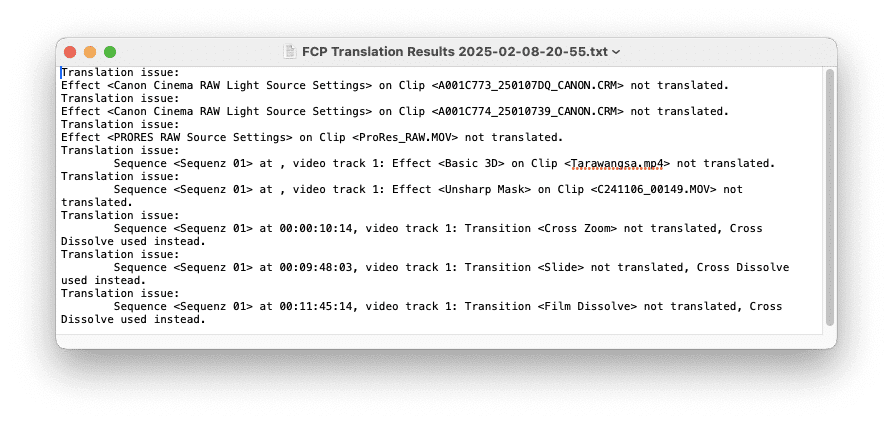
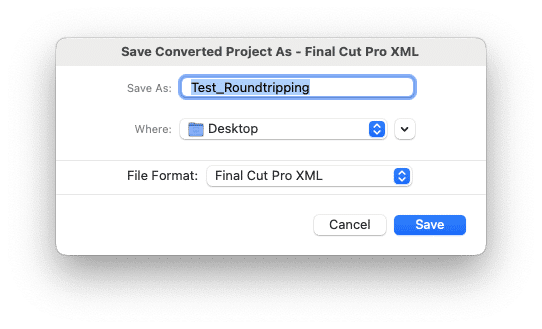
In Premiere, we simply select the desired sequence and go to File > Export > Final Cut Pro XML. We can still assign a name, but DR does not read it anyway, instead the one in the XML file. PPro kindly creates a text file called FCP translation results, but this is largely worthless: there are far fewer references than there are actual problems. A tip for importing: First load all sources into the media page, sorted neatly into bins if you like. Then load the XML from Premiere via Import > Timeline, but switch off the automatic import of the media. You can also change the name of the timeline here. If only it were that easy in Premiere (see below)!
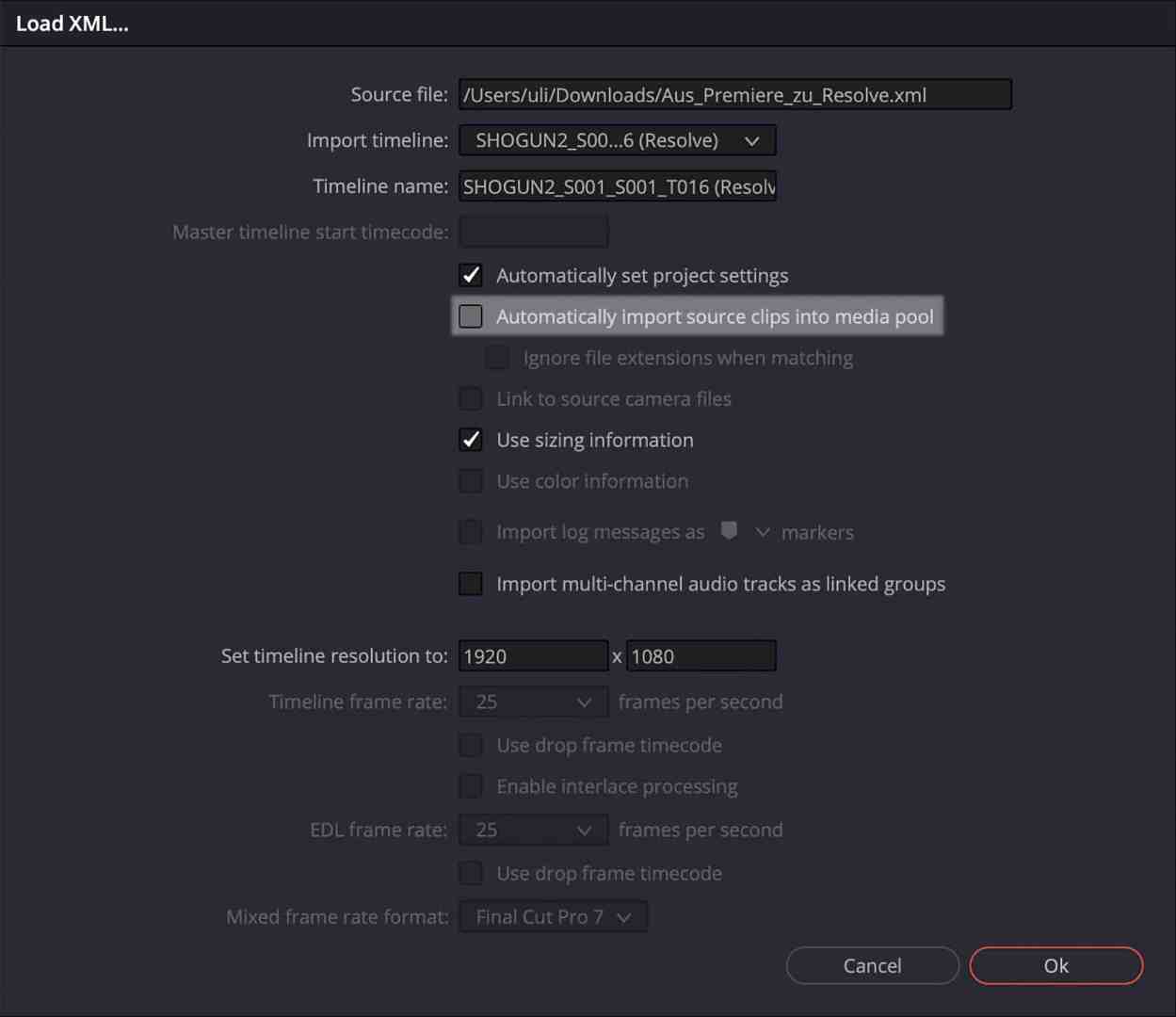
At first glance, we are pleased that all video and audio tracks of a timeline with over 4 hours arrive without errors. Even timeline markers are included. Although they are all blue, their position and duration are correct, and a comprehensive commentary text also arrives – a very welcome tool for team coordination (called notes in DR). Clip markers, on the other hand, don’t work. Another communication aid is to switch off video tracks (this does not work for audio tracks). That’s helpful, because you can simply place Adobe-specific items such as titles or linked After Effects clips on a deactivated track for export.
As for fades, there is of course the cross-dissolve (sadly only the “video” version, “film” may look nicer), a fade to white or black and even a wipe from PPro is coming across as an edge wipe. Caution: Temporally asymmetrical transitions get centred on the cut. All other transitions become crossfades. This is stated in the aforementioned protocol, but does not fully correspond to the information in the DR manual. Regarding filters, even standards such as a Gaussian blur or unsharp masking do not come across, even if both NLEs offer them. Perspective effects are also lost, although both programmes are capable of those too.
Level changes of the audio tracks are ignored, but video opacity values are even transferred with keyframes. Only very slight deviations can be detected in all functioning keyframes, but do not tinker with the interpolation method! Even speed changes arrive including keyframes, but don’t get too excited: linear interpolation is arriving in DR, as with the other animated values. At best, you can use it to suggest what you want, but the aesthetic fine-tuning has to be done during final production. Still images are lost, so you should turn them into video clips at the source. Finally, stereo audio tracks get turned into mono for no apparent reason. You’ll need to reconfigure them in the Clip Attributes.
A smaller pitfall is the TC of the timeline. It normally starts at zero for PPro and at one hour for DR – this can easily be changed on import, in the project or for the single timeline. Scaling and position, even rotation, are coming across, including animation. There is another issue to take care of: PPro has two methods to scale a clip to the timeline resolution. If the clip is set to “Scale to frame size” that is a virtual scaling and it will not be observed in the XML, accordingly the clip will arrive in DR at its original size. “Fit to frame” will look just the same in PPro, but the clip will be scaled in DR too.

You can set this behaviour in the presets before importing media to your PPro project to make it the default. But please don’t change the anchor point, that would ruin everything. Behind this is a fundamental difference: PPro is working in absolute pixel values, while DR is resolution independent (generally) and works in percentages. Unfortunately, only linear interpolation is used here too, so it is not always looking nice. Scaling of different source sizes can be set in the DR project too, or be fixed in the Inspector. Also pay attention to the resolution of the timeline, or it will be switched to the format of the largest video source.
Resolve to Premiere
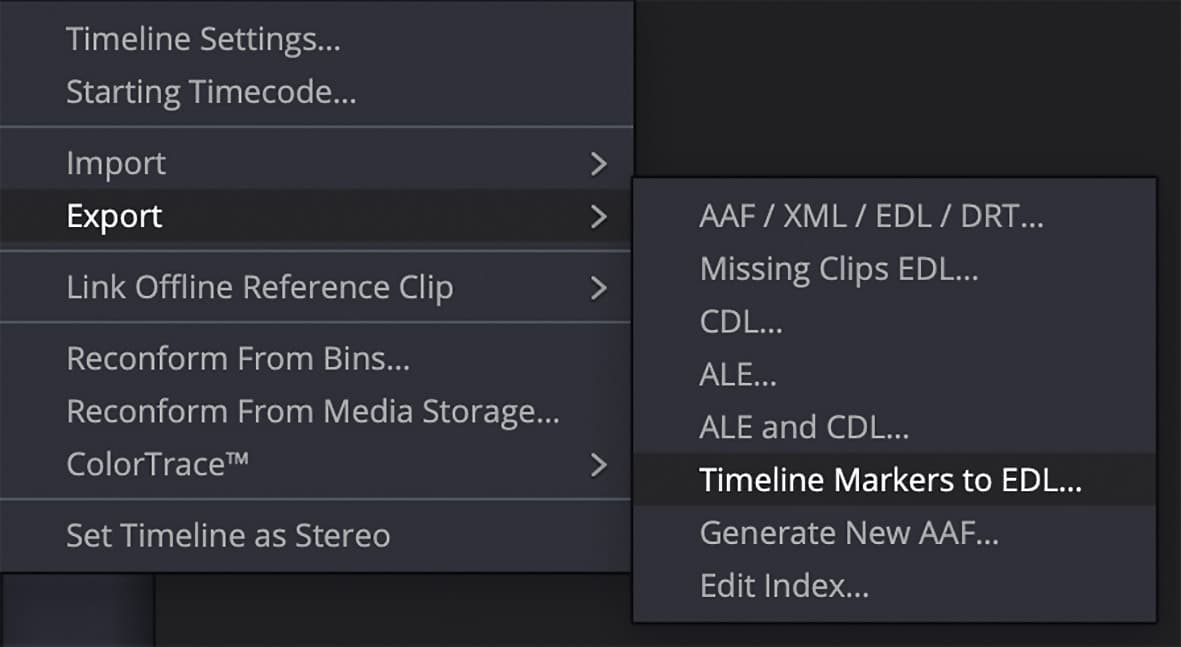
Pay attention to the format when exporting from DR: Only FCP 7 V5 XMLs are accepted by PPro via the import command. First of all, the positive: Not only do all tracks and even still images arrive here, but also the information for muting audio or deactivating video tracks. However, this almost exhausts the communication options: only clip markers are received, but they are useless without any text or names, and duration markers are not received at all. At least you don’t have to limit communication to notes on paper: right-click on the timeline and select Timelines > Export > Timeline Markers to EDL to get a list of timecodes, comment texts and the colour specification as text (note: no clip markers).
Crossfading is possible, but only in the standard version (video). Dip to colour usually becomes a black fade, but with pure white it also works in this direction. Edge wipe comes across, even with a change of direction, but don’t get overconfident straight away: A free choice of angle becomes the next 45-degree step. Opacity, zoom, position and rotation including keyframes only work if the project in PPro has already been set accordingly. If the individual clip is subsequently rearranged in DR, all keyframes are removed. Here too, the anchor point must remain in the centre, otherwise you get nonsense – without any warning. Speed ramps seem to work at first glance, but they are completely wrong. Filters: Forget them! Adjustment layers too.
What can be easily deactivated in DR can be a bit annoying in PPro: Every time a timeline is re-imported, some clips are re-imported as duplicates, even though they already exist. At some point, you may end up with an endless list of identical clips. But there is a workaround if it happens to you: Create a temporary project, load your XML timeline there, link all the media that may still be missing and save it. Now switch to the original project, go to the temporary project in the Media Browser and link it using Dynamic Link. You can now navigate to the imported sequence and open it in the source window. It can then be dragged into the current project without reloading all clips. Cumbersome, but clearer in the end. All this considered, the path from PPro to DR works much better than the other direction.
Advice
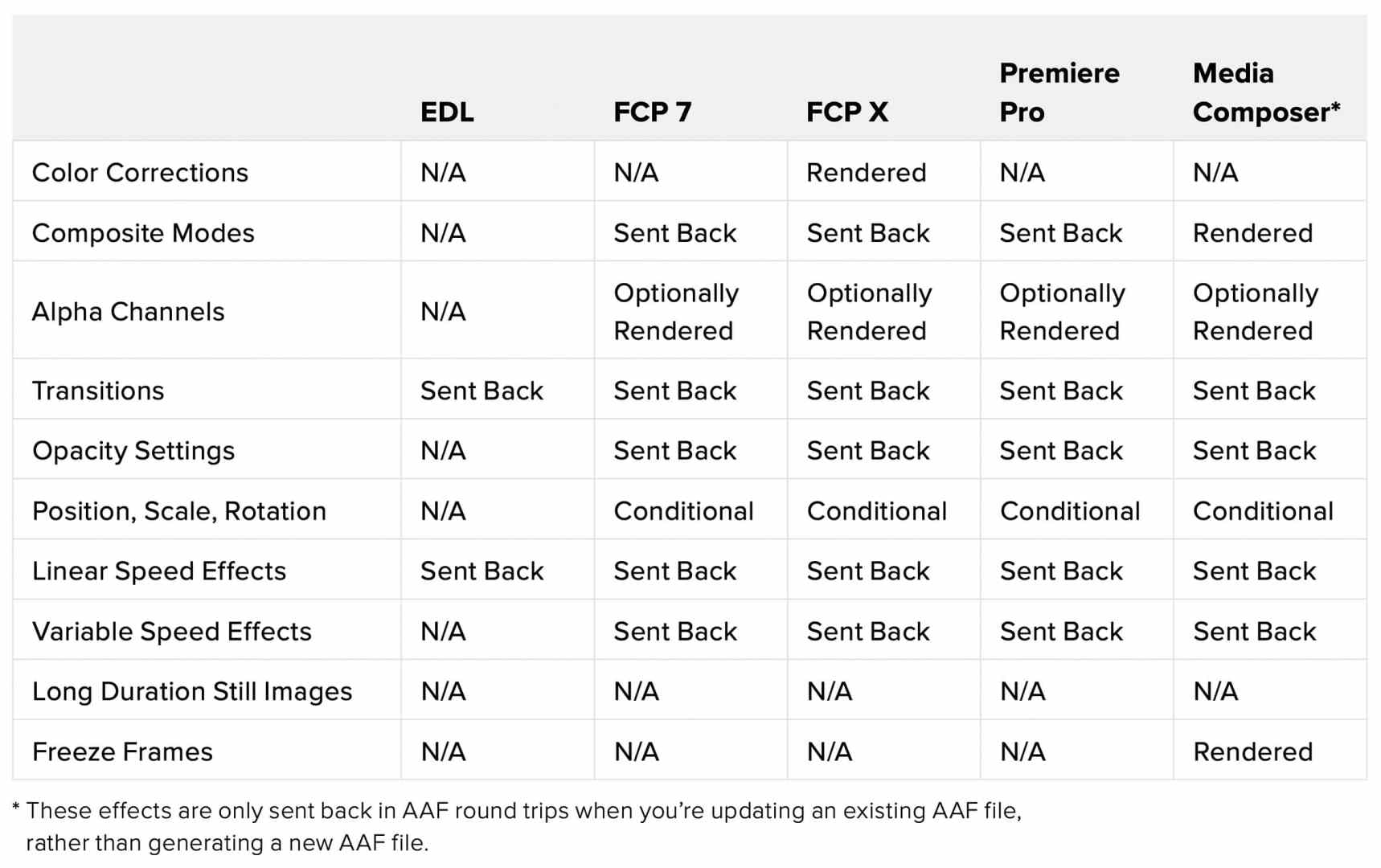
It should be clear that this information can only be a snapshot, as both NLEs are constantly being further developed. We have tested with DaVinci Resolve 19.1.3 and Premiere Pro 25.1 and have by no means tried out all the transitions and filters – this could fill several pages. In chapter 55 of the Resolve manual under “Preparing to Move Your Project to DaVinci Resolve” there are detailed tables on this, but in our own tests they were by no means correct in all points (although Premiere is hardly mentioned anyway).
It is therefore essential to carry out extensive workflow tests with your own material and all the desired design tools. If this is not respected by the production company, it is better to keep your hands off the project or make it clear in the contract that the corresponding additional services will be charged by the hour. Of course, with the XML method, only the information is handed over for editing and not the video material. We must therefore ensure ourselves that it can be found by the other system. This can be particularly confusing under Windows if the respective drive has been assigned a new letter. The link commands in the respective NLE usually solve the problem.
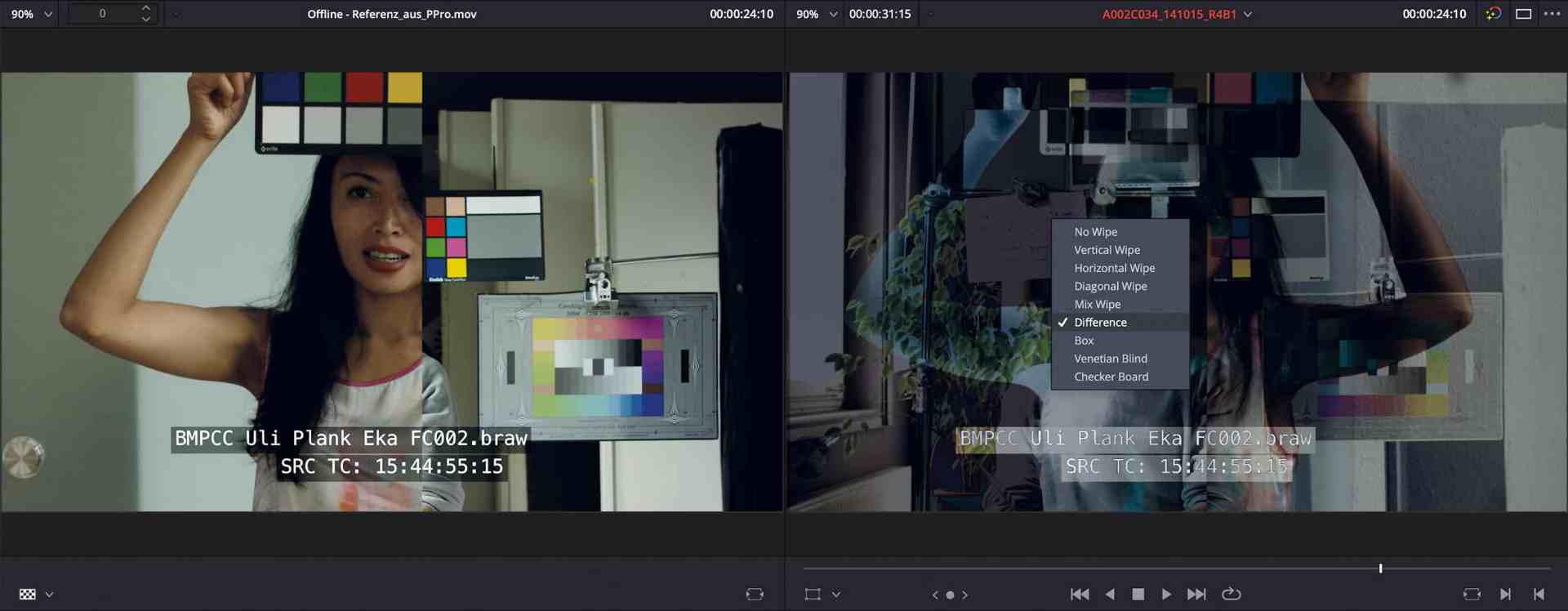
To be sure that the whole edit has arrived correctly, a reference clip should always be rendered on the source system, preferably again with TC and clip names burnt in. You can load this in DR as “offline” in the left-hand viewer, then it is linked via TC and runs constantly synchronised with the right-hand image of the timeline (pay attention to the start TC!). Alternatively, you can right-click on “Difference” in the timeline viewer. Then everything except the burn-ins should remain black when scrolling through if no errors have occurred.
Updated on September 10th, 2025
As of today, DR is supporting ProRes RAW too, so it can be transferred and used on both sides.
